
Set up authorized networks and authorized users
sBizzl offers two powerful features to enhance your account security: Networks and External Network Access (to employees).
- Navigate to Settings > Company > Profile > Security > Authorized Network.

Here's a breakdown of how they work together:
Networks:
- This feature allows you to restrict access to sBizzl to specific trusted IP addresses only.
- By configuring authorized IP addresses (like your office network), you can help prevent unauthorized access to your sBizzl data from unknown locations.
External Network Access (to employees):
- This feature lets you designate specific employees who can access sBizzl even outside the authorized network range.
- For example, field staff or remote workers can be granted access even if they're not connected to your office network.
Owner Access:
- Important Note: Regardless of authorized networks or users, employees with the "Owner" account type will always have access to sBizzl from any location and device. This inherent access is due to their high-level administrative privileges.
How it Works Together:
- Once you've set up authorized networks, employees can access sBizzl only from devices with IP addresses within the configured authorized range.
- However, authorized users you've designated can access sBizzl from any location, regardless of IP address.
Add Networks:
To add networks, in Networks > Click on Add Network in the upper right corner of the Networks section.

- It will show Add Network Modal as Below.
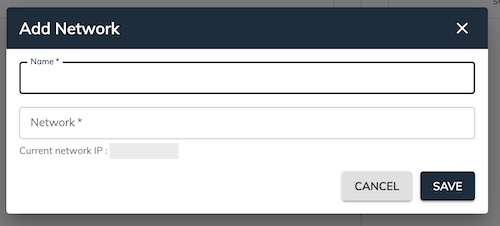
- Name: You can write the network name.
- Network: You can write IP4 to be configured to restrict access.
- Current network IP: This will show your current IP4 for your reference
Delete Network:
To delete a network, click on the Delete button of a specific Network, as shown on the below screen.

- It will ask for Delete confirmation and Click on DELETE to delete it.
External Network Access:
- To add employees, click on the Add Employee in the upper right corner of the External Network Access section.

It will show Add Employee Modal as Below.
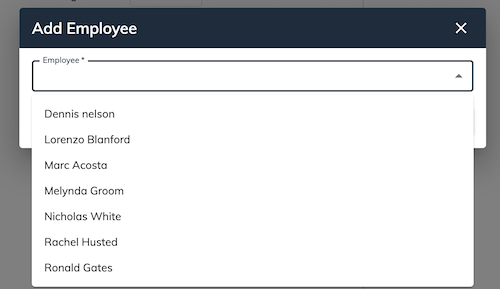
- Employee: select Employee to add authorized users.
Revoke Users Access:
- To revoke employee’s access, click on the Revoke button of a specific Employee, as shown on the below screen.

- It will ask for Revoke Access confirmation and Click on REVOKE to remove it.